 QRCoder
Scan history
QR Scan History: Find, Favourite and Clean Up Scans
The Wi-Fi code from a friend's flat, the tracking number from last week's parcel, the link from a conference badge — a good scan history means you only scan once. It also means your phone holds a list worth keeping private.
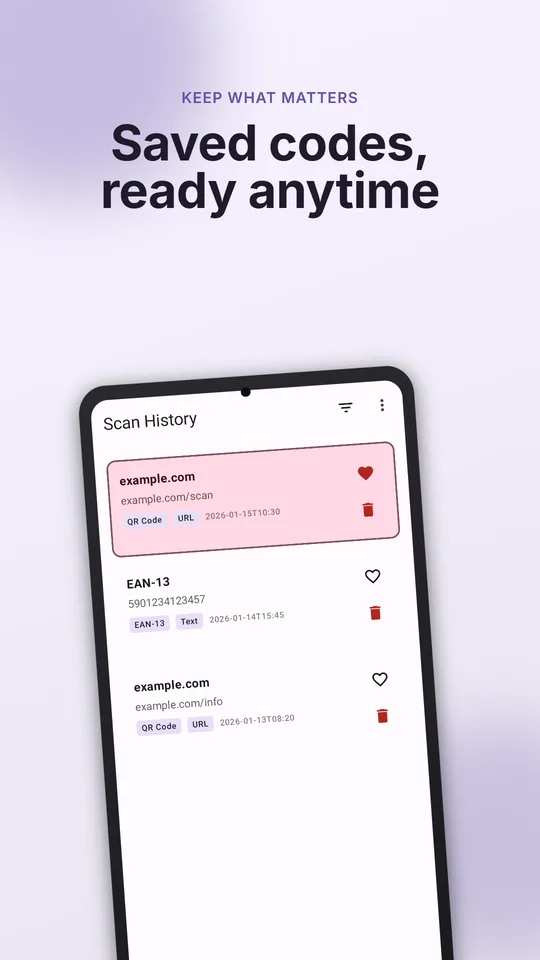
What gets saved
Each scan in QRCoder is saved on your device with its content, its type (link, Wi-Fi, contact, text and so on), its format (QR Code, EAN-13, Code 128…) and the time. History is stored locally — there is no account and no cloud sync.
Find a scan later
Search history by content, type or format. Some examples:
- Type part of a domain to find a link you scanned at an event.
- Filter by Wi-Fi to find a network you joined months ago.
- Filter by EAN or UPC to see product codes from a home inventory.
From a saved result you can open, copy or share it again — links still show their domain and full address before opening.
Favourites for the codes you reuse
Mark a scan as a favourite with the heart icon. Good candidates:
- Your gym, office or co-working Wi-Fi.
- A parking or transit operator's official payment link.
- Serial numbers and model barcodes for warranty claims.
- A colleague's contact card you have not saved yet.
Batch scanning without clutter
When you need to scan many codes in a row — unpacking a delivery, checking in a list of items, collecting codes at a trade show — use batch mode. It keeps scanning without leaving the camera, and a code scanned twice in the same session is saved only once.
Clean up what you do not need
Scan history can quietly collect sensitive data: Wi-Fi passwords, boarding-pass codes, personal contact details, links with account tokens in them. Every few months:
- Delete old tickets and boarding passes.
- Delete Wi-Fi codes for networks you will not use again.
- Remove links that contain long random tokens — they may be personal login or reset links.
- Keep only the favourites you actually reuse.
Why local history matters: a scanner that uploads history puts a list of places you visited, networks you joined and links you opened on someone else's server. QRCoder keeps it on the device, and you decide what to delete.
Sharing a saved result
Share sends the decoded content — a link, a contact, a piece of text — to the app you choose. If you want to pass on a code itself, you can create a QR code from the content and share the image.
Frequently asked questions
Where is my QR scan history stored?
On your phone. QRCoder does not require an account and does not sync history to the cloud.
Can I search scan history?
Yes. You can search saved scans by their content, type or barcode format, and mark important ones as favourites.
Does batch mode create duplicate history entries?
No. In batch mode, a code scanned more than once in the same session is saved to history only once.
How this article was created
This article was drafted with the help of artificial intelligence and edited against the app's published feature list. The independent developer is responsible for publication and accepts correction reports. Verify health, safety, legal, financial and official requirements with a primary source or qualified professional.
Questions and corrections: brightwaveapp@gmail.com. Legal and privacy information.