 QRCoder
Create QR codes
Create a QR Code for a Contact Card, Link or Event
A QR code that saves your contact details in one scan beats spelling out an email address across a noisy room. The same few steps also work for links, Wi-Fi, calendar events and locations — as long as the code is printed so that it actually scans.
What you can put in a QR code
| Type | Good for |
|---|---|
| Contact | Business cards, name badges, email signatures |
| Link | Portfolio, menu, booking page, feedback form |
| Wi-Fi | Guest rooms, rentals, small offices |
| Calendar event | Invitations, workshops, meetups |
| Location | Event venues, parking, hard-to-find entrances |
| Phone, SMS, email | "Call us", "text to confirm", support contact |
| Text | Short instructions, serial numbers, notes |
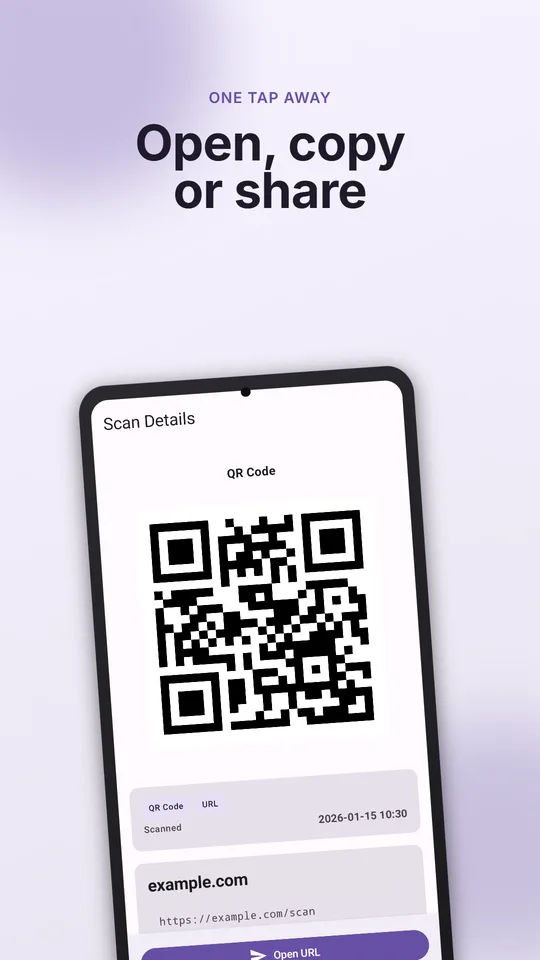
QRCoder creates all of these. Save the result as an image or share it straight to another app. You can also share a link or text from any app to QRCoder to start a code with that content.
Make a digital business card
- Create a new code and choose Contact.
- Fill in name, phone, email, company and website. Keep it short — more data makes a denser code that is harder to scan when printed small.
- Save the image and add it to your card, badge, slide or email signature.
- Scan it with a different phone to check that the contact imports correctly.
When someone scans it, their phone shows your details and asks before saving the contact.
Printing rules that make codes scan
- Size: about 2 × 2 cm (0.8 in) is a practical minimum for close-range scanning. For posters, a common rule is at least one-tenth of the scanning distance — a code read from 2 m away should be about 20 cm wide.
- Quiet zone: leave an empty margin around the code, at least four modules (small squares) wide. Don't let text or borders touch it.
- Contrast: dark code on a light background. Inverted and low-contrast colours fail on many scanners.
- Surface: avoid glossy lamination under bright light, and curved surfaces like cups.
- Test: scan the final print with two different phones before printing hundreds.
Static codes don't expire, but links do. A QR code for a link is permanent, but the page behind it is not. For printed material, link to a page you control and will keep online.
Sharing files with a QR code
A QR code can't hold a file itself — it holds up to a few thousand characters of text. To share a document, upload it to a storage service, make the link shareable, and put that link in the code. Check who can access the link before printing it.
Help people trust your code
People are rightly wary of QR stickers. Print your name or brand and the short domain next to the code so scanners can check it matches. It is exactly what we recommend in our QR link safety guide.
Frequently asked questions
Can I create a QR code for my contact details?
Yes. In QRCoder, create a code, choose Contact, fill in your details and save or share the image. When scanned, the other phone asks before saving the contact.
How small can a printed QR code be?
About 2 × 2 cm is a practical minimum for scanning up close. For codes read from further away, make them roughly one-tenth of the scanning distance wide.
Do QR codes created in QRCoder expire?
No. The code itself stores the content directly. If it contains a link, it works as long as that web page stays online.
Sources and further reading
How this article was created
This article was drafted with the help of artificial intelligence and edited against the app's published feature list. The independent developer is responsible for publication and accepts correction reports. Verify health, safety, legal, financial and official requirements with a primary source or qualified professional.
Questions and corrections: brightwaveapp@gmail.com. Legal and privacy information.